The tour

Everything one thing does.

Every feature in the free app, in one place. No account, no subscription, nothing to set up.

02 · The daily loop

Pick it. Plan it. Do it.

01

One goal a day

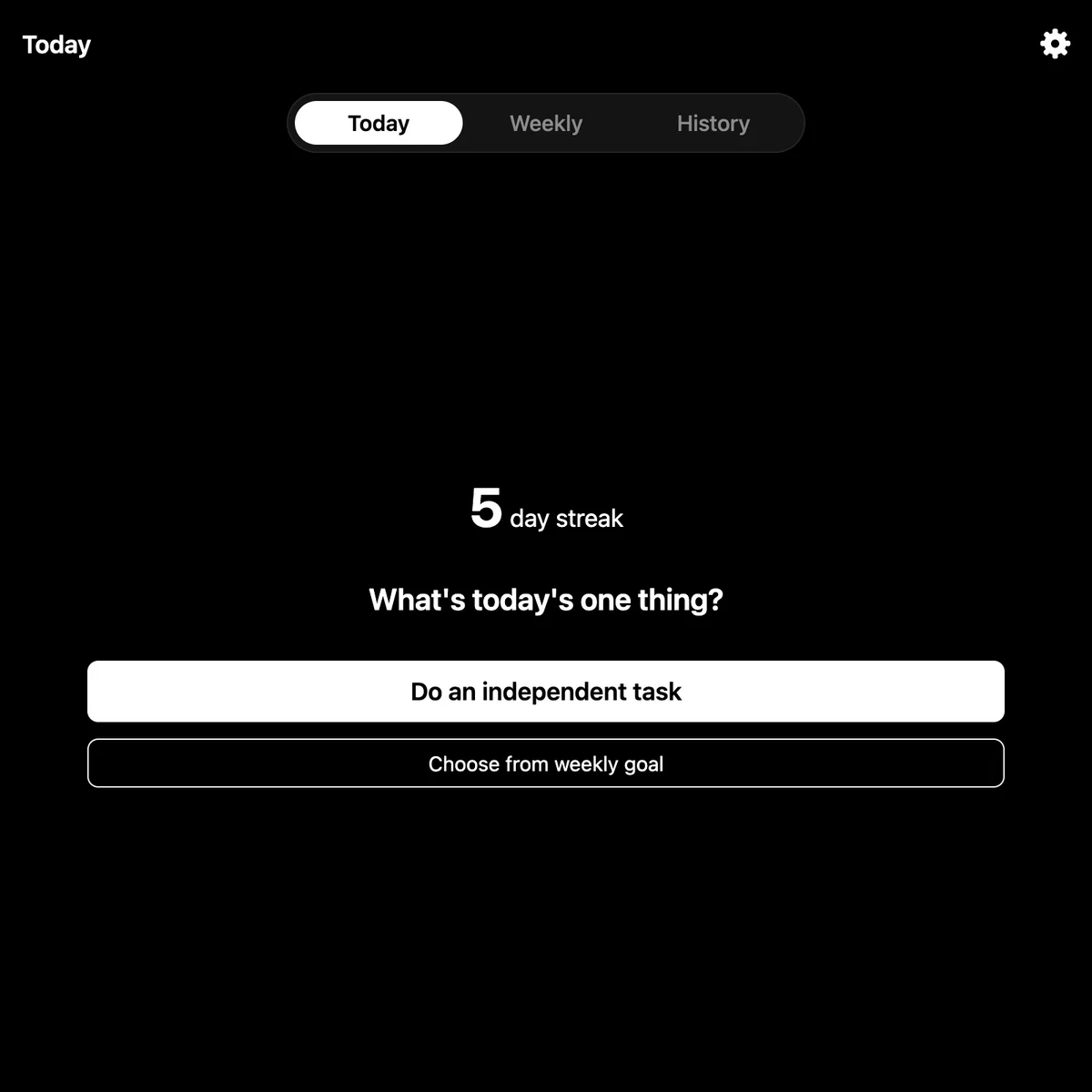
Every day starts with one question: what's today's one thing? Type something fresh, or pick a step from your weekly checklist. Just one — there's no to-do list to hide behind.

  • An independent task, or a step from your week
  • One goal per day, by design
Today tab asking What's today's one thing?, with buttons Do an independent task and Choose from weekly goal
02

Schedule it

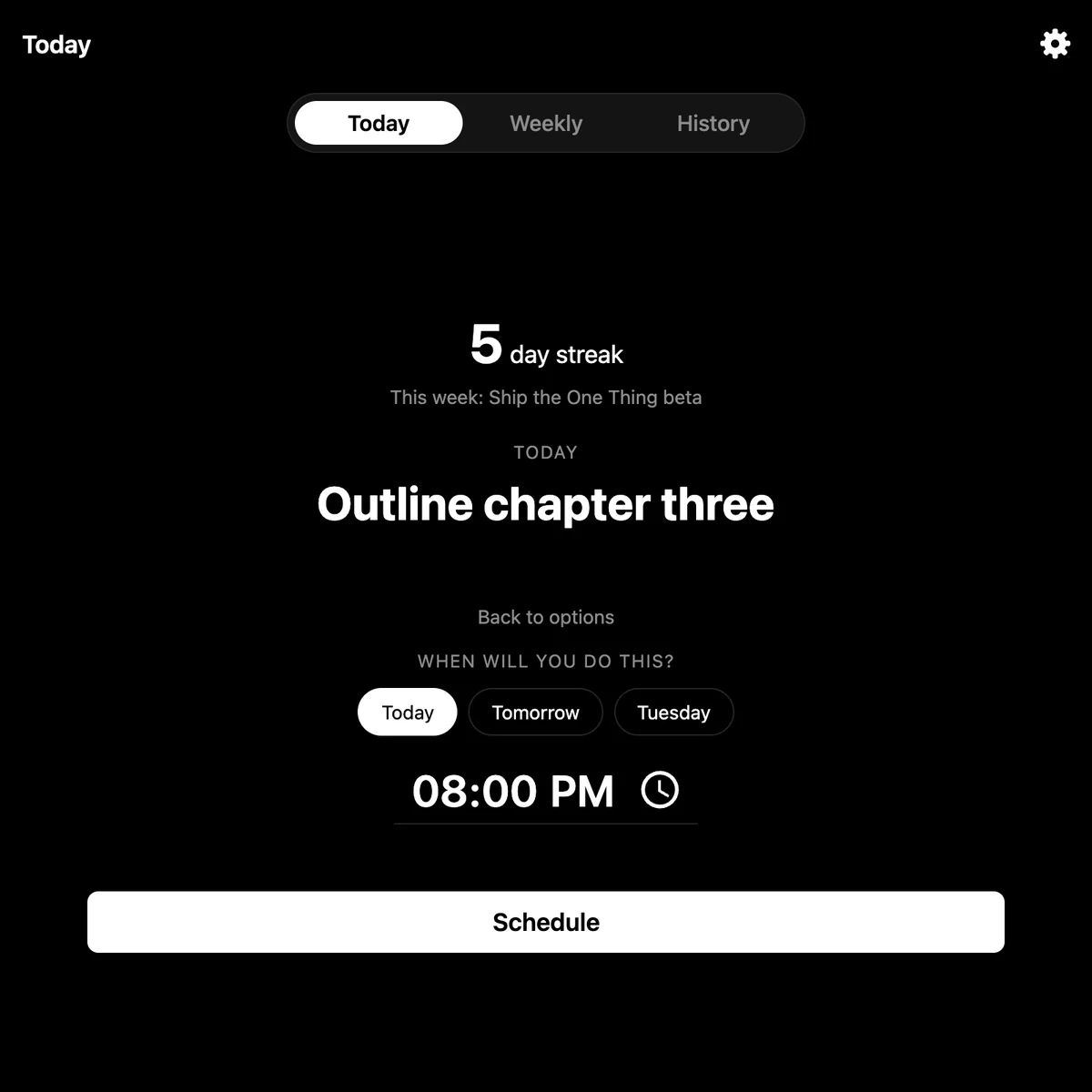
Decide when you'll actually do it: today, tomorrow or the day after, down to the minute. Committing to a time is half the work.

  • Any time in the next 48 hours
  • A reminder at that time on iPhone
Scheduling Outline chapter three: day choices Today, Tomorrow and Tuesday, a time of 8:00 PM, and a Schedule button
03

A calm focus timer

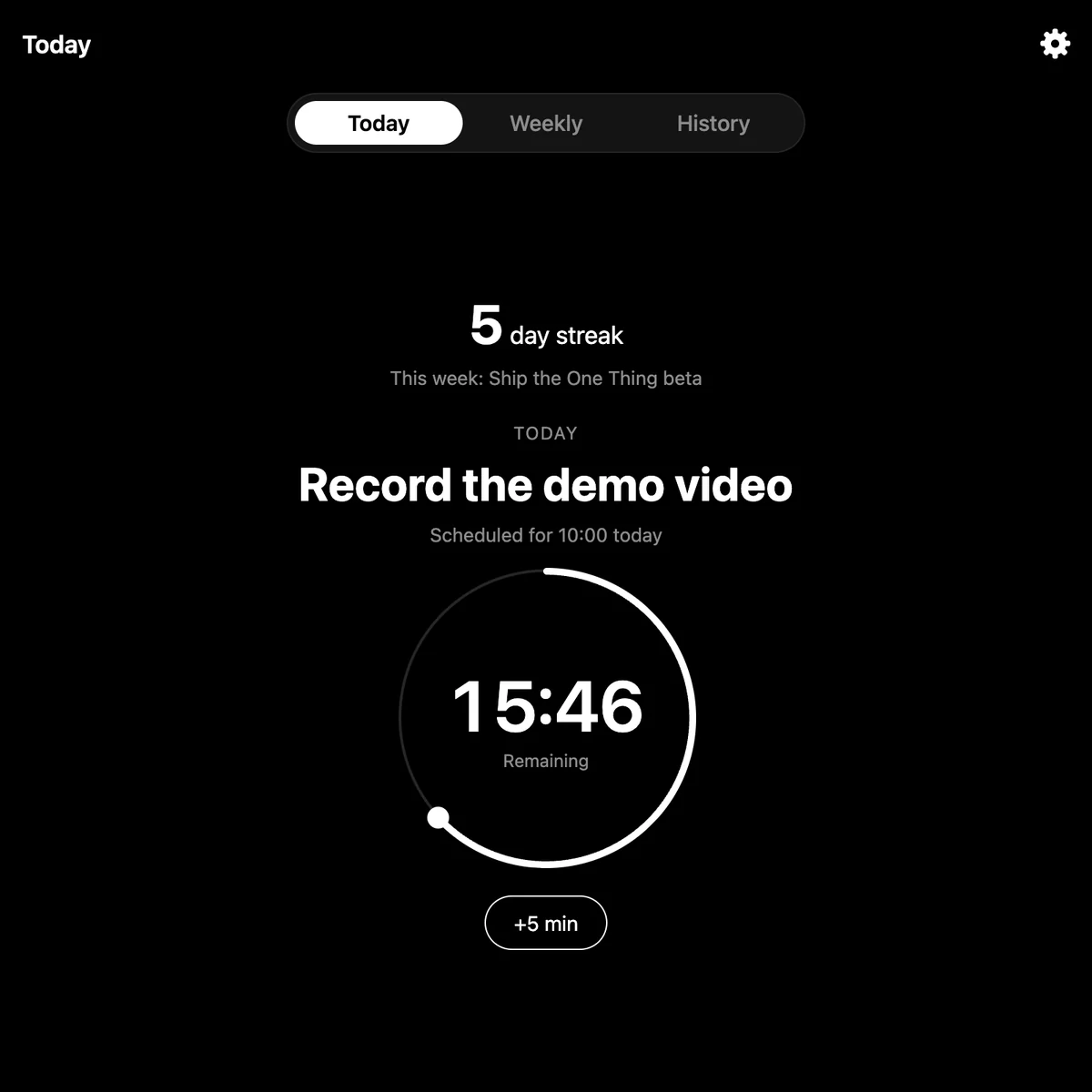
Pick a duration and start. The ring empties as you work. Wander off to another app and it pauses after a three-second grace period; come back and it carries on.

  • Pauses when you leave, resumes when you return
  • +5 min when you need a little longer
  • Remembers where it was, even after a restart
Focus timer for Record the demo video, with a countdown ring at 15:46 remaining and a +5 min button
04

Done, or not. Honestly.

When time's up, you mark it Done or Failed. No partial credit, no auto-complete. Your streak counts days in a row you got it done — a failed or skipped day starts it again.

  • Two buttons, one honest answer
  • A streak that means something
03 · The week

Plan the week. Live the day.

05

A weekly checklist

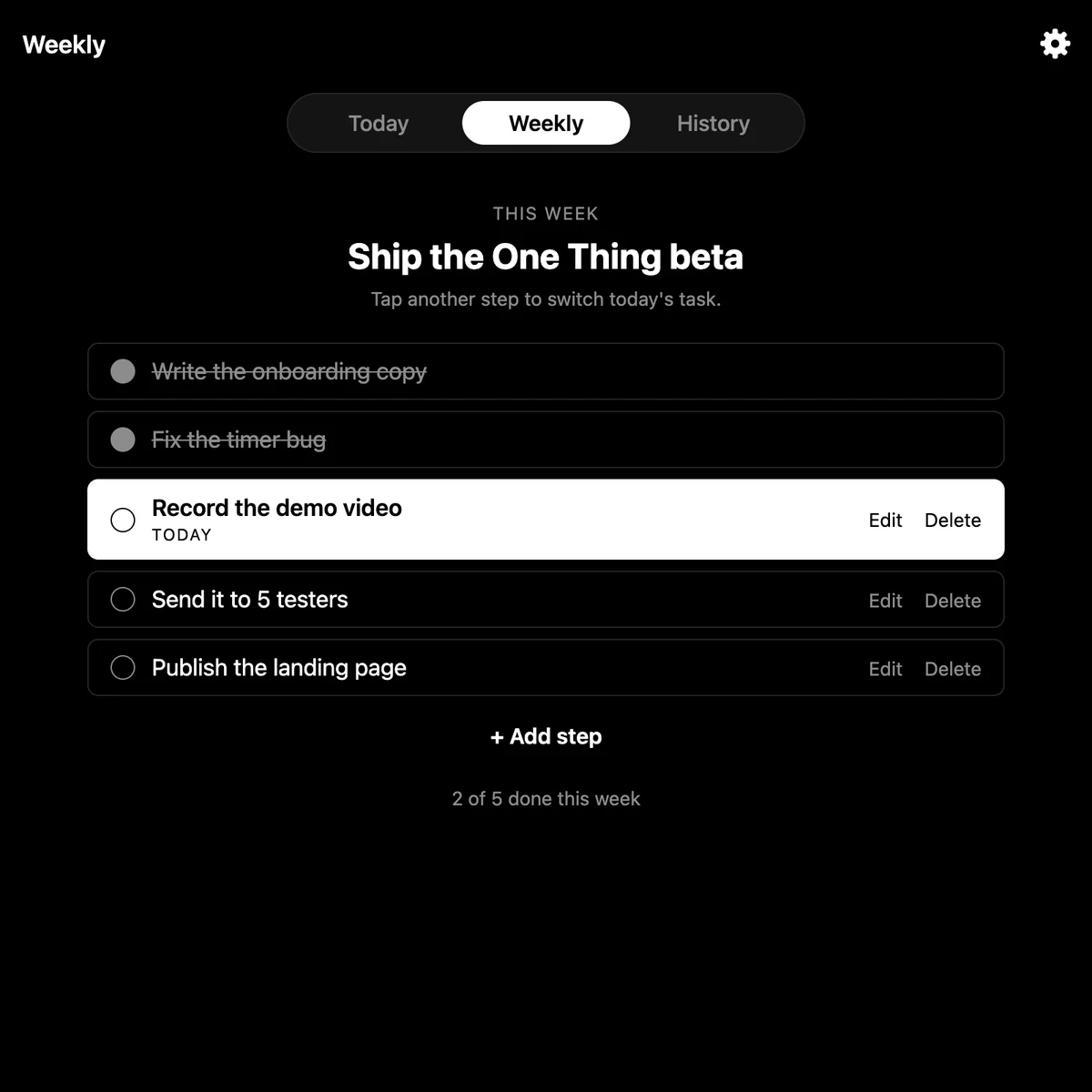
Set a goal for the week and break it into steps. Each day, tap one step to make it today's one thing — finished steps tick themselves off. Rather not plan the week? Just do daily goals.

  • Add, edit and remove steps as you go
  • See how far you are: 2 of 5 done this week
  • Daily-only weeks if you prefer
Weekly checklist for Ship the One Thing beta: two steps done, Record the demo video marked as today
06

Your history

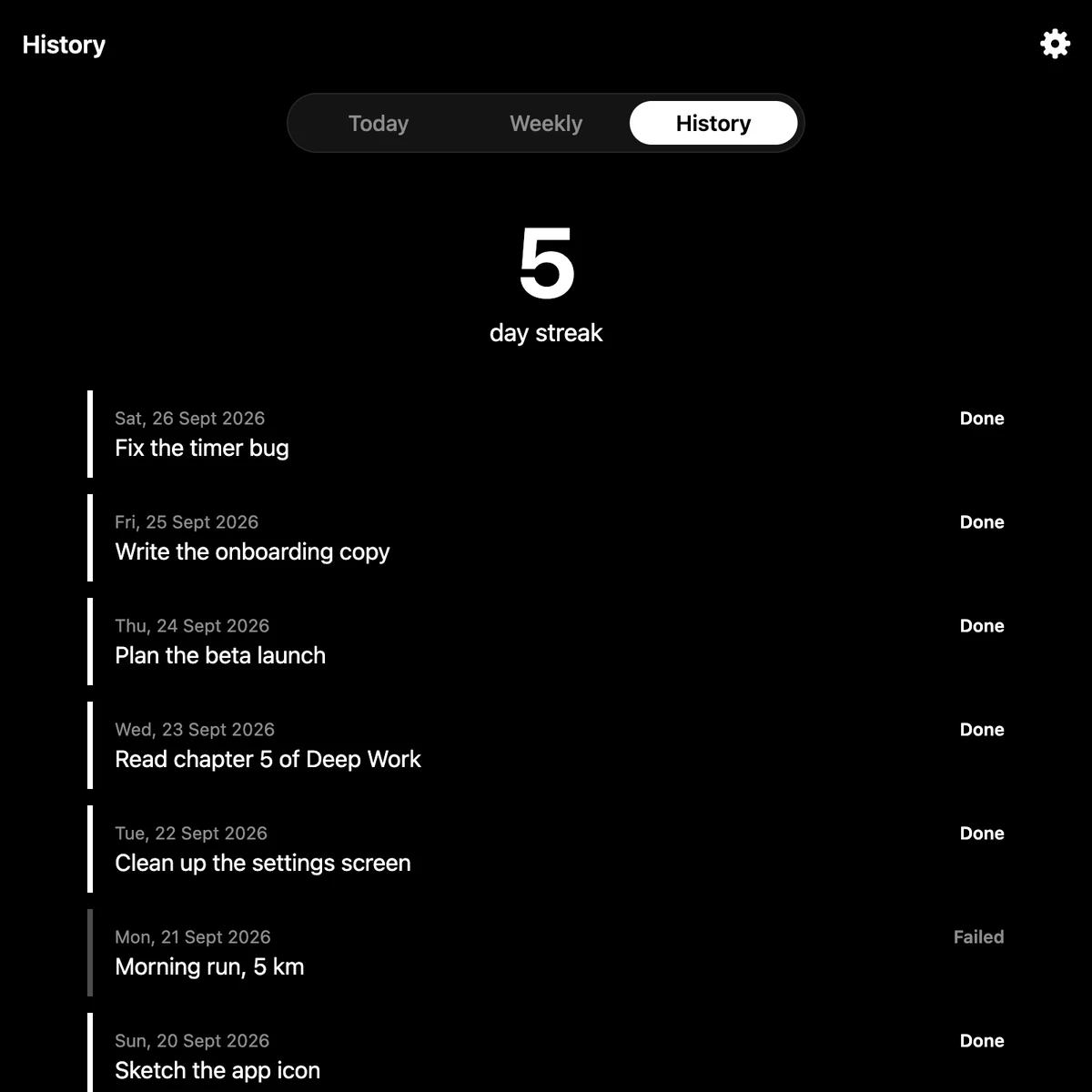
Every day you log lands in History: the date, what you did, and whether you did it. A plain record, newest first — no charts to perform for.

  • Done and Failed, side by side
  • Your streak, front and centre
History tab with a 5 day streak and a list of past days marked Done or Failed
04 · On your Mac

Made for the desktop.

07 · Mac

Timer-friendly apps

Some work happens in other apps. Choose the ones where your timer should keep counting — your editor, your design tool — and switch to them freely. Anything else still pauses it.

  • Pick from your installed apps
  • No permissions needed
08 · Mac

Timer by the notch

While the timer runs, a small black pill wraps around the notch at the top of your screen — a progress ring on one side, the time left on the other. Visible from any app. Click it to jump back.

  • Never steals focus
  • Turn it off in Settings
09 · Mac · optional

App Lock

Off unless you turn it on. Pick apps to lock; open one before today's goal is done and One Thing comes straight back to the front. Mark the day done and it steps aside until tomorrow.

  • Only checks which app is in front — nothing inside it
  • No permissions, and one click to turn off
05 · Quiet by design

No account. No noise.

10

Private by default

There's nothing to sign up for. Your goals, streak and history live on your device and nowhere else — no account, no cloud, no analytics.

06 · Try it

Do one thing. Starting today.